![]() |
|
||||
| ホーム | ダウンロード | Support |
| 機能 | 寄付 | よくある質問 (FAQ) |
| NeoOffice 3.1.1 Early Access Program | NeoOffice Mobile |
NeoOffice is a full-featured set of office applications (including word processing, spreadsheet, and presentation programs) for Mac OS X. We have created an office suite that is adapted to the unique needs of Mac users by taking the features in Oracle's OpenOffice.org 3.0.1 office suite and adding improvements such as:
NeoOffice 3.0.2 includes nearly all of the features in OpenOffice.org 3.0.1. The only OpenOffice.org feature that is missing from NeoOffice 3.0.2 is Mac OS X Universal Access support. Unfortunately, we have not been able integrate OpenOffice.org's Universal Access code into NeoOffice so if you need Universal Access support, we recommend that you use OpenOffice.org, Microsoft Office, or Apple iWork.
This release adds several new features including:
Native Mac OS X text highlighting
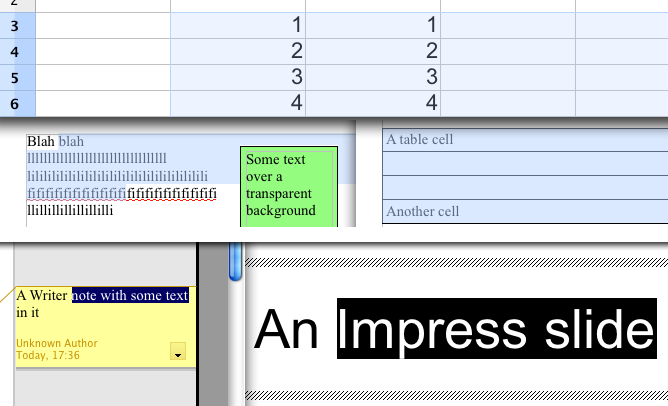
NeoOffice draws highlighted text the same as Apple's Safari and TextEdit applications. Recent versions of OpenOffice.org attempt to emulate native Mac OS X text highlighting by drawing a very light shade of the system highlight color on top of the highlighted text. However, many of our users have requested that we support full native Mac OS X text highlighting behavior in NeoOffice so we have rewritten the text highlighting code in NeoOffice's underlying OpenOffice.org code to draw highlighted text the same as Apple's various Mac OS X applications. The following screen snapshots show how NeoOffice's text highlighting behavior compares to OpenOffice.org's behavior:
Text highlighting in NeoOffice 3.0.2![]() |
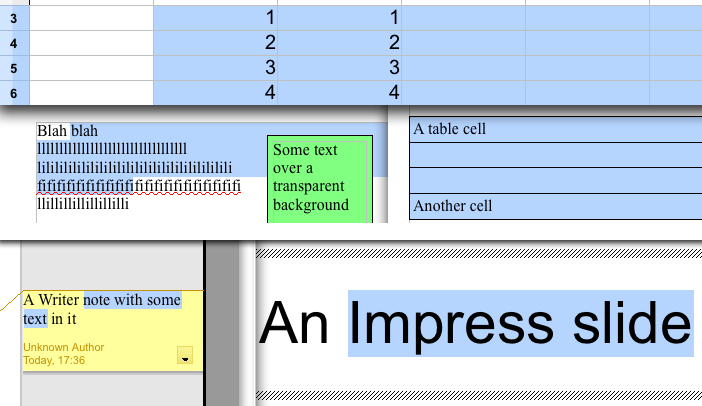
Text highlighting in OpenOffice.org 3.1.1![]() |
Open Calc or Impress instead of Writer at launch
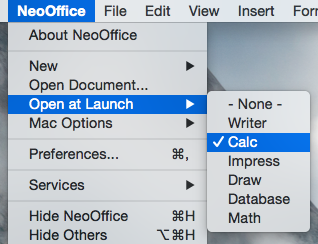
The NeoOffice :: Open at Launch menu allows you to choose which type of document to open when NeoOffice is launched. By default, NeoOffice opens a Writer document when launched. However, many of our users have requested that we provide an easy way to make a different document type such as Calc or Impress open when NeoOffice is launched so we have added the NeoOffice :: Open at Launch menu.
When a user selects one of the document types listed in this menu, NeoOffice will open the selected document type the next time that you launch it. Also, users can select the "- None -" menu item to only show the Mac OS X menubar when NeoOffice is launched. The screen snapshot to the right shows the NeoOffice :: Open at Launch menu with Calc set as the document type to open at launch.
NeoOffice draws text using each font's recommended glyph kerning. In previous versions, NeoOffice's underlying OpenOffice.org code moved glyphs to the nearest screen pixel. Since Mac OS X does not require glyphs to be aligned with the nearest screen pixel, NeoOffice ignores the glyph movements requested by the OpenOffice code so that text is drawn as close as possible to the font's recommended glyph kerning. The following screen snapshots show how NeoOffice's smoother text kerning behavior compares to the behavior in previous versions:
Text kerning in NeoOffice 3.0.2![]() |
Text kerning in previous versions of NeoOffice![]() |
Important note for Calc users who are using "Excel A1" or "Excel R1C1" as the formula syntax: In order to fix a crashing bug, we had to remove the ability to use "Excel A1" or "Excel R1C1" as the formula syntax. This feature was an experimental feature developed by Novell's Go-oo engineers that we included in NeoOffice 3.0.1 and 3.0.2 Early Access. Unfortunately, we found that Novell's experimental feature made NeoOffice Calc unstable and since Novell's engineers have removed this feature from their Go-oo releases, we were unable to fix the stability bugs in their code. As a result, we had to remove this feature.
Below is a list of some of the Mac OS X features requested by our users that are in NeoOffice 3.0.2 but are not in OpenOffice.org 3.0.1:
![]() |
![]() |
![]() |
NeoOffice Mobile provides a way to securely share NeoOffice files with other users and other computers. It works by allowing you to "publish" a document from within NeoOffice to the NeoOffice Mobile server using a secure, encrypted connection. Once documents are published, they can be viewed using secure connections from regular web browsers or web-enabled mobile devices. Also, for NeoOffice users with NeoOffice Mobile installed, previously published documents can be opened directly in NeoOffice.
Anyone can create a free NeoOffice Mobile account. Free accounts can upload and view documents but they are limited to only 10 megabytes of storage and their documents expire after 48 hours. This allows users to try out NeoOffice Mobile and use it for temporary storage. NeoOffice donors, in contrast, have access to the complete set of features. For more information on the features that each type of account has access to, please visit the NeoOffice Mobile pricing page.
Native file locking support for local and networked volumes
In OpenOffice.org 3.0, Oracle's engineers stopped using native file locking and starting using custom, non-native file locking code. Since most office suite applications use native file locking, their custom, non-native code caused frequent problems when users on different machines were editing the same file on a networked volume. We have restored native file locking in NeoOffice and now file locking should work the same as it did in NeoOffice 2.2.6.
Mac OS X Services support
In NeoOffice, many of the menus within the NeoOffice :: Services menu will be enabled whenever you highlight data in your document. When you select any of the submenus in the NeoOffice :: Services menu, the highlighted data will be sent to the Mac OS X application that matches to the Services menu that you select. Please note that at this time NeoOffice does not support Mac OS X services that change the highlighted data in your document. Only services that read your highlighted data are supported. This means that menus like the NeoOffice :: Services :: ChineseTextConverter menu will be disabled in NeoOffice.
Media Browser support
Many Mac OS X users have found Apple's iLife Media Browser very useful and we have received many requests to include the same feature in NeoOffice. Fortunately, the generous people at Karelia Software have developed the iMedia Browser and we have integrated their iMedia Browser into NeoOffice. Once you open the Media browser by clicking on the Show Media Browser toolbar button or selecting the Tools :: Add-ons :: Show Media Browser menu, a floating window will appear from which you can drag your images, movies, sound files, or links directly into a NeoOffice document.
Native floating tool windows
In OpenOffice.org, many floating tool windows such as the Styles and Formatting and the Color windows look and behave like document windows. Also, other floating tool windows such as the Bullets and Numbering and the Table windows look and behave like Windows floating tool windows. But in NeoOffice, all floating tool windows in NeoOffice will be native floating tool windows. This means that they will look and behave like floating tool windows in most other Mac OS X applications. They will have the small window titlebar, all of the floating tool windows will float above the document windows, and when NeoOffice is not the active application, all of the floating tool windows will automatically be hidden until NeoOffice becomes the active application again.
Magnify and swipe trackpad gestures
Starting with some of Apple's recent Mac laptops, the trackpad supports magnify and swipe gestures that were first seen in the iPhone. Mac laptops that have a trackpad that supports these gestures will be able to zoom the content in their document using the magnify gesture and will be able to move up or down a page using the swiping gesture.
Menus available when no documents are open
OpenOffice.org has only a very minimal set of menu items available if no documents were open. But in NeoOffice, menus are available even when no documents are open. This feature allows users to access some of the frequently used menus such as the Recent Documents and NeoOffice Help menu items that previously were not accessible unless you opened a document first.
Import images from scanners and cameras
A menu - Tools :: Add-ons :: Paste Image from Camera or Scanner - has been added. Selecting this menu allows you to directly import images into NeoOffice from any device (such as digital cameras or scanners) that Apple's Image Capture application supports. If you have any devices attached to your machine that Image Capture recognizes, selecting this menu will display the Mac OS X Image Capture dialog. Using this dialog, you can import an image from any of the recognized devices into your current document. In addition, the imported image will also be copied to the system clipboard so that you can paste additional copies of the imported image in NeoOffice or any other application.
Command-clicking on window titlebar
In most Mac OS X applications, whenever a previously saved document is opened, a small icon will appear in the window's titlebar. Command-clicking on this icon will display a popup menu that lists the file name and the folders that the file is in. Clicking on any of these items will open the Finder.
Mac OS X Leopard grammar checking support (Mac OS X 10.5.x and higher only)
In Mac OS X 10.5.x, Apple added grammar checking support for a small number of languages. NeoOffice takes advantage of this Mac OS X feature and so we have added several menu items in the Tools :: Add-ons menu. These menu items allow you to use Mac OS X Leopard's grammar checker to check the grammar and recommend corrections for your document's selected text or your entire document. Please note that at this time, Mac OS X's grammar checker only supports English.